
Watch on the Web
Use your computer, phone, or tablet. No app installation is needed.
-
Open Stream
Go to stream.quadstate.tv in your browser, or select Watch Now on the Quad State TV website.
Stream opens the player and channel list. On a phone, scroll to see the channel controls.
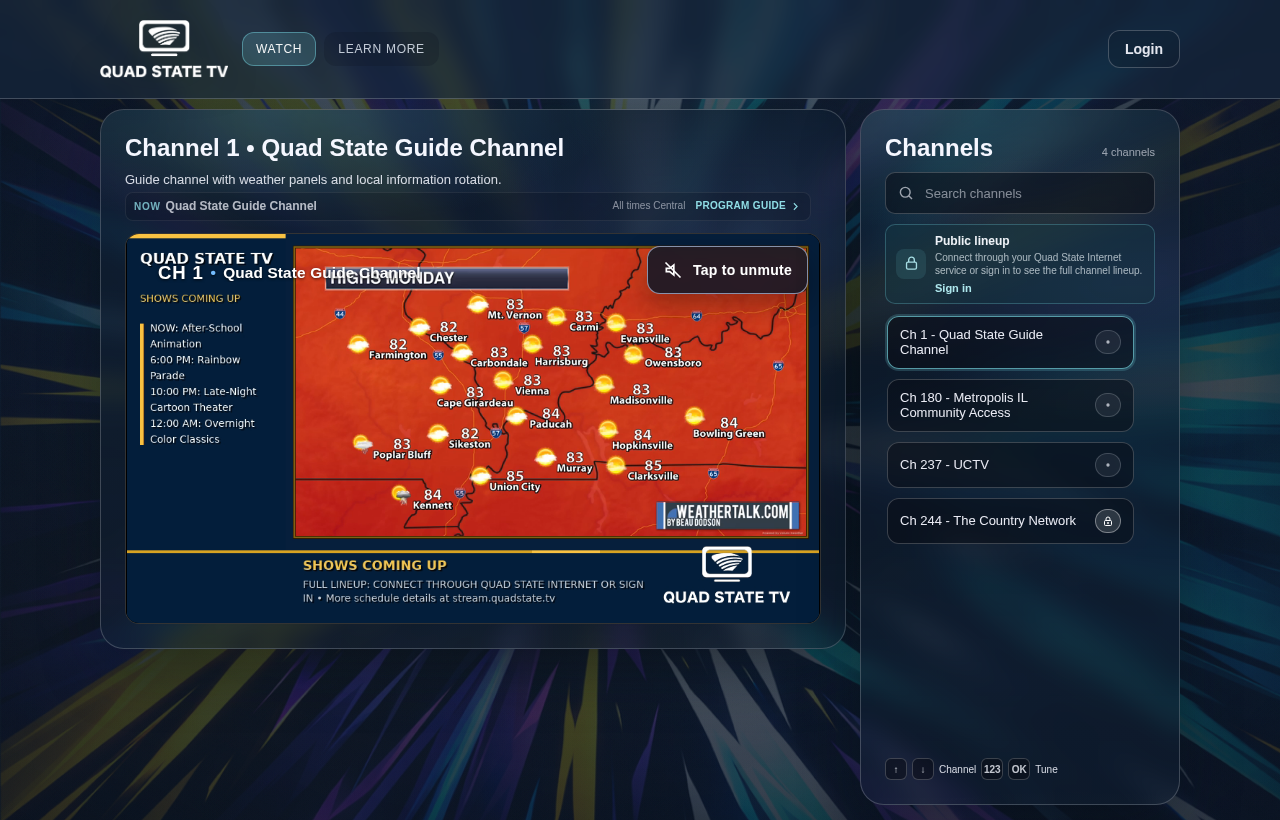
The Stream player. -
Sign in for your channels
Select Login or Sign in, then choose Log in to use your Quad State account.
If you’re connected through eligible Quad State Internet service, you can choose Use my connection. If your included channels already play, you can continue watching.
The available channels depend on your account, service, and location.
Open sign-in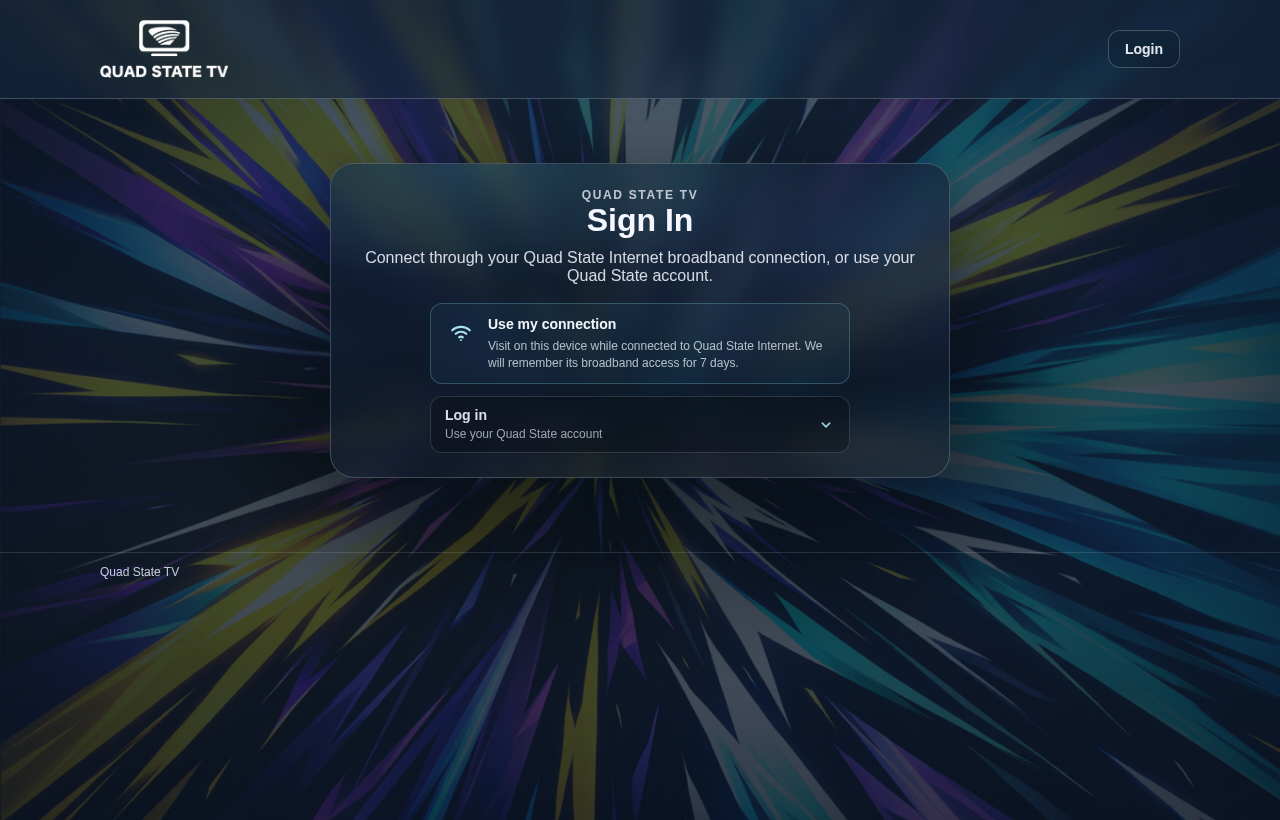
Choose your connection or your Quad State account. Choose what to watch
Select a channel from the Channels list. If the player shows Tap to unmute, select it to turn on sound.
Open Program guide to see what’s on and what’s coming next. Sign in if prompted.
If something doesn’t work
I don’t see all my channels
Check that you’re signed in with the Quad State account associated with your service. If you use connection access, open Stream while connected to your Quad State Internet service. Contact support if an included channel is still missing.
The picture plays without sound
Select Tap to unmute on the player, then check your device volume and whether the browser tab is muted.
A channel won’t start
Reload the page and try another channel. If the problem continues, tell support the channel name, your browser, and any message shown in the player.
Contact support
Tell us which step you’re on and what you see.