
Set up on Roku
Install the app on your Roku, connect your account, and find your channels.
-
Find the app on Roku
Press Home on your remote, then open Search. Use the on-screen keyboard to enter Quad State TV.
You can also search from Streaming Store. Some Roku menus call it Store or Streaming Channels.
Use the arrow buttons to highlight Quad State TV in the results, then press OK.
-
Install and open Quad State TV
Look for the Quad State TV name and logo shown here. Choose Add app (or Add channel on older Roku versions). Enter your Roku PIN if prompted.
After installation, return to Home, find Quad State TV in your apps, and press OK to open it.
Prefer to add it from your phone? Open the store link below and sign in with the same Roku account used on your TV.
Open Roku store
Look for Quad State TV. -
Connect your account
If your included channels already play, continue to step 4. Eligible Quad State connections may be recognized automatically.
If sign-in is needed, open the app’s account menu at the top right and choose Sign in with a code. Leave that screen open.
On your phone or computer, open stream.quadstate.tv/activate. Enter the code from your TV and select Continue. Sign in to your Quad State account when asked, name the device, and choose Activate this device.
Use your Quad State sign-in here. Your Roku account is used for installing apps.
Activate a device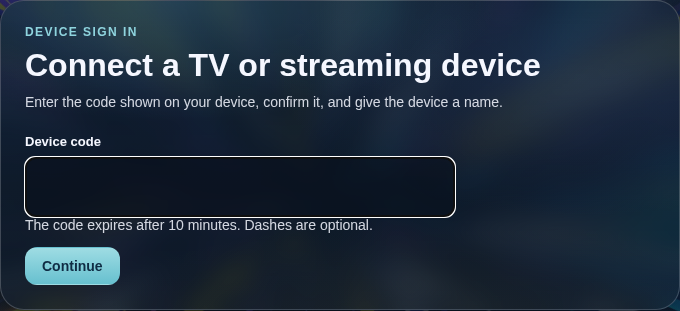
Enter the code from your TV. -
Choose a channel
Open Guide in the app. Use Up and Down to browse your channels. The program details show what’s on now and what’s coming next.
Press OK to watch the selected channel. Press Back to return to the guide.
View the current channel lineup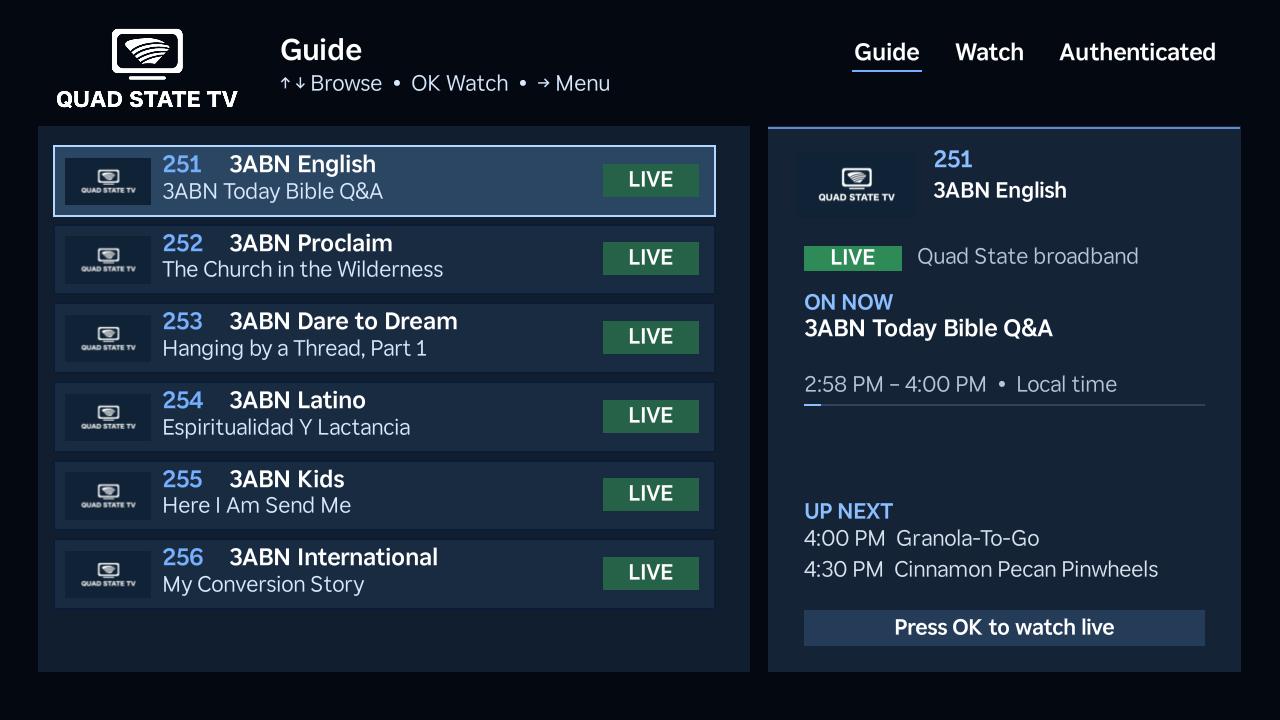
Browse your channels in Guide.
If something doesn’t work
The app isn’t showing on my Roku
Check that you added it with the Roku account used on this TV. On your Roku, go to Settings → System → System update → Check now, then return to Home and check your apps.
How do I know my account is connected?
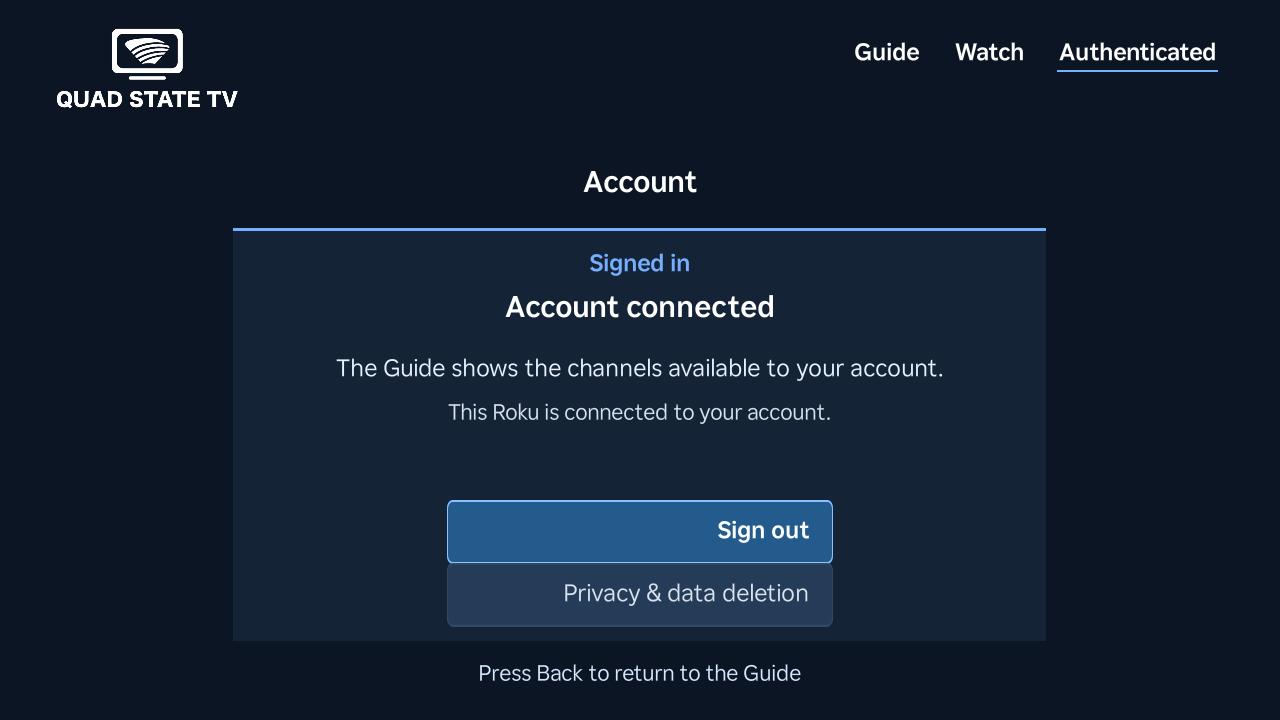
Open the account menu at the top right. It shows Account connected after you sign in.
My sign-in code expired
Codes expire after 10 minutes. Return to the app’s account screen and choose Sign in with a code again. Keep that screen open while you enter the new code on the activation page.
I’m signed in but a channel is missing or locked
Make sure you used the Quad State account associated with your service. Channel access depends on your account, service, and location. Contact support below if a channel included with your service is unavailable.
Contact support
Tell us which step you’re on and any message shown on your TV.
Roku’s app installation instructions
ROKU and the ROKU Logo are trademarks and/or registered trademarks of Roku, Inc. in the United States and other countries.